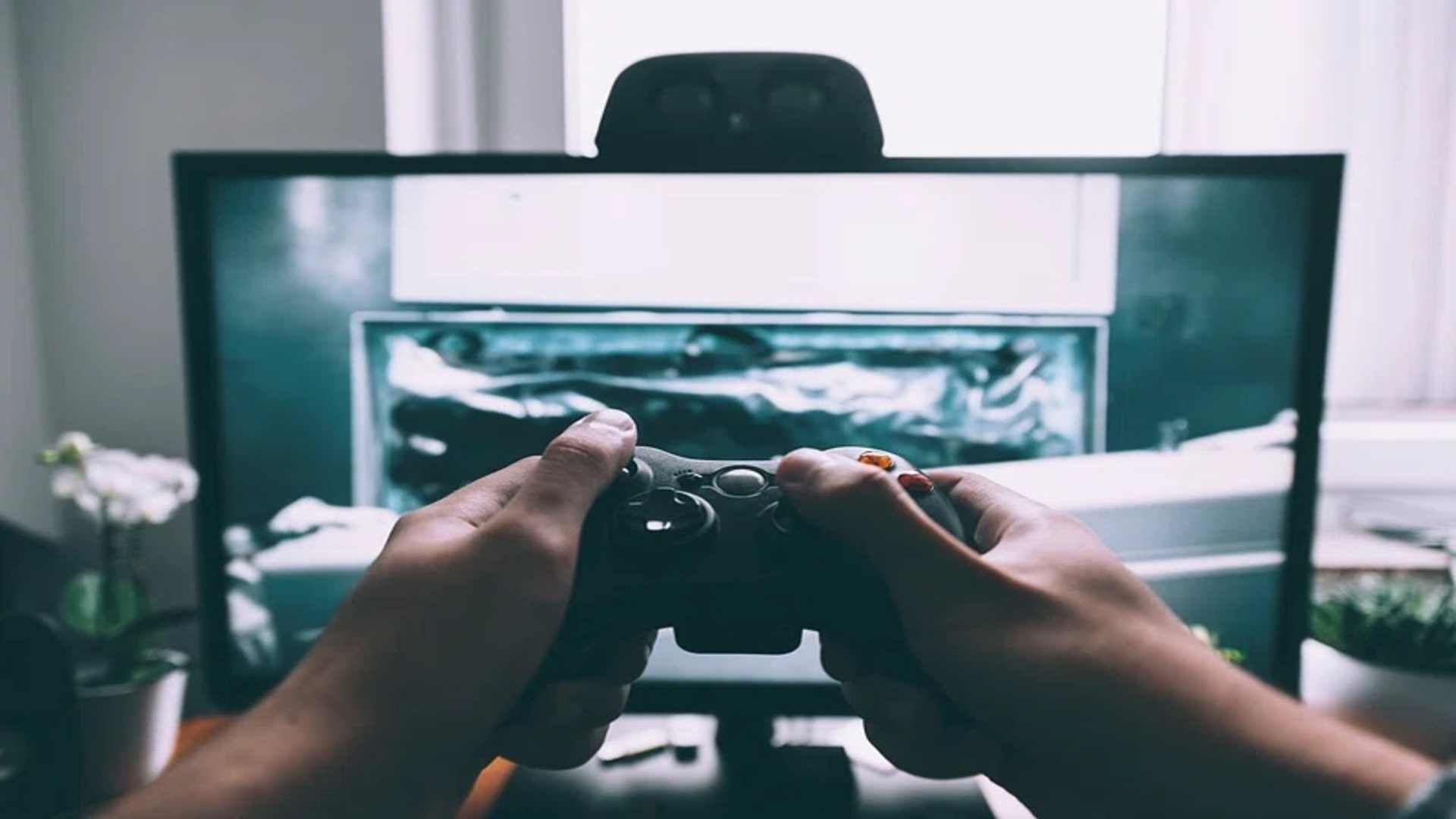
Connecting a PlayStation 5 DualSense wireless controller to an iPhone unlocks a console-grade gameplay experience for mobile titles and remote play apps. Thanks to built-in iOS support, pairing the peripheral requires no third-party software or complex hacks. Understanding the exact button sequence ensures a fast connection within seconds.
Preparing Your Devices for Bluetooth Pairing
Before initiating the wireless setup, verify that your iPhone is running iOS 14.5 or later to guarantee full DualSense feature compatibility. It is also beneficial to ensure the PS5 controller is powered off and disconnected from any active console sessions. This prevents accidental wake signals from interrupting the mobile pairing sequence.
Keeping up with mobile compatibility updates and controller firmware patches helps maintain smooth connectivity across different iOS versions. Enthusiasts who follow daily gaming news often stay ahead of performance tweaks that improve controller latency during active gameplay sessions. Checking for software updates on both devices ensures maximum responsiveness.
How to Put the PS5 DualSense into Pairing Mode
To broadcast a Bluetooth signal from the DualSense, press and hold the Create button and the central PS button simultaneously. Continue holding both inputs until the light bar around the touchpad begins flashing rapidly in a blue double-blink pattern. This light sequence indicates that the controller is discoverable by nearby Bluetooth receivers.
If the light bar glows solid or pulses slowly, the controller connected to its primary console instead. Simply power down the controller by holding the PS button, then repeat the simultaneous press sequence. Precise timing ensures the device enters broadcast mode smoothly.
Completing the Connection on iOS
With the light bar flashing, open the Settings app on your iPhone and navigate to the Bluetooth menu. Ensure Bluetooth is toggled on, then scan the list of available devices under the Other Devices section. Tap on DualSense Wireless Controller when it appears to initiate the final handshake.
Once connected, the light bar on the PS5 pad will solidify into a steady color ring. Your iPhone will save this profile, making future reconnections almost instantaneous when Bluetooth remains active. You can now launch supported native games or streaming clients immediately.
Managing and Disconnecting Your Controller
Disconnecting the pad after a session is simple and can be done directly through your iPhone's Control Center or Bluetooth settings. Alternatively, holding the PS button for roughly ten seconds powers down the controller manually. This helps preserve battery life when transitioning back to handheld controls.
When you are ready to switch back to your home console, you must pair the controller to the PS5 using a USB-C cable. Turning on the console while connected via wire restores its primary link instantly. This simple step ensures seamless switching between mobile and home setups.